Jobs
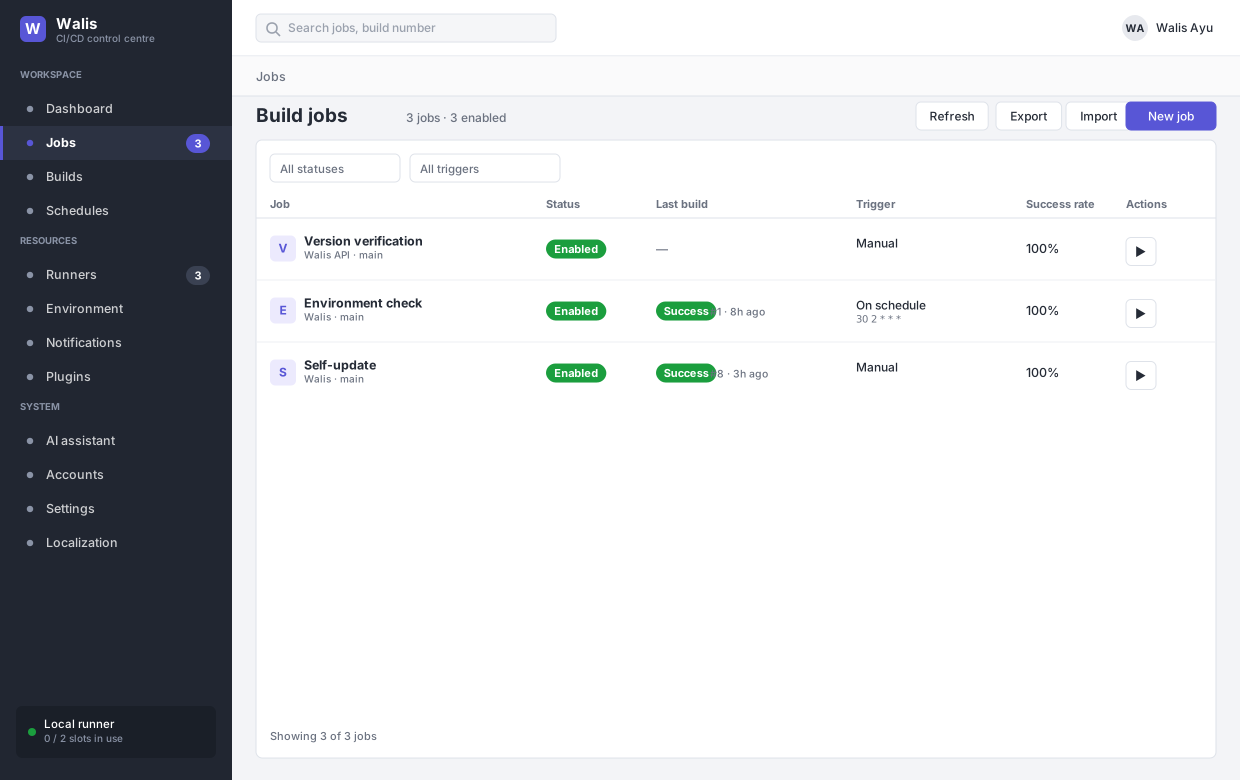
A job is a name, a script, a place to run it, and the rules for when it runs. Jobs do not store steps — those are derived when a build starts, which is why changing a job never needs a migration of past builds.
The list
Filter by status (enabled, paused), by project, and by trigger (manual, on push, on schedule), or search by name, project or branch. Each row shows the last build, the trigger configuration, and a success rate.
Paging, sorting and filtering all happen on the server, so the list is the same size whether the instance has thirty jobs or three thousand — the browser is never handed the whole table to sift through.
The list only shows jobs your role can see. A job you cannot see is not merely hidden: requesting it by identifier returns 404, not 403, so the response does not confirm that it exists.
Import from Jenkins converts a Jenkinsfile or a job's config.xml into a draft and opens it in the editor without saving anything — see Import from Jenkins for the walkthrough, and the mapping table for what translates.
Export and Import move jobs and custom actions between machines as JSON. Import matches by name, not identifier — with overwrite off, a name that already exists is skipped; with it on, the existing job is updated in place and keeps its identifier and build history.
The editor
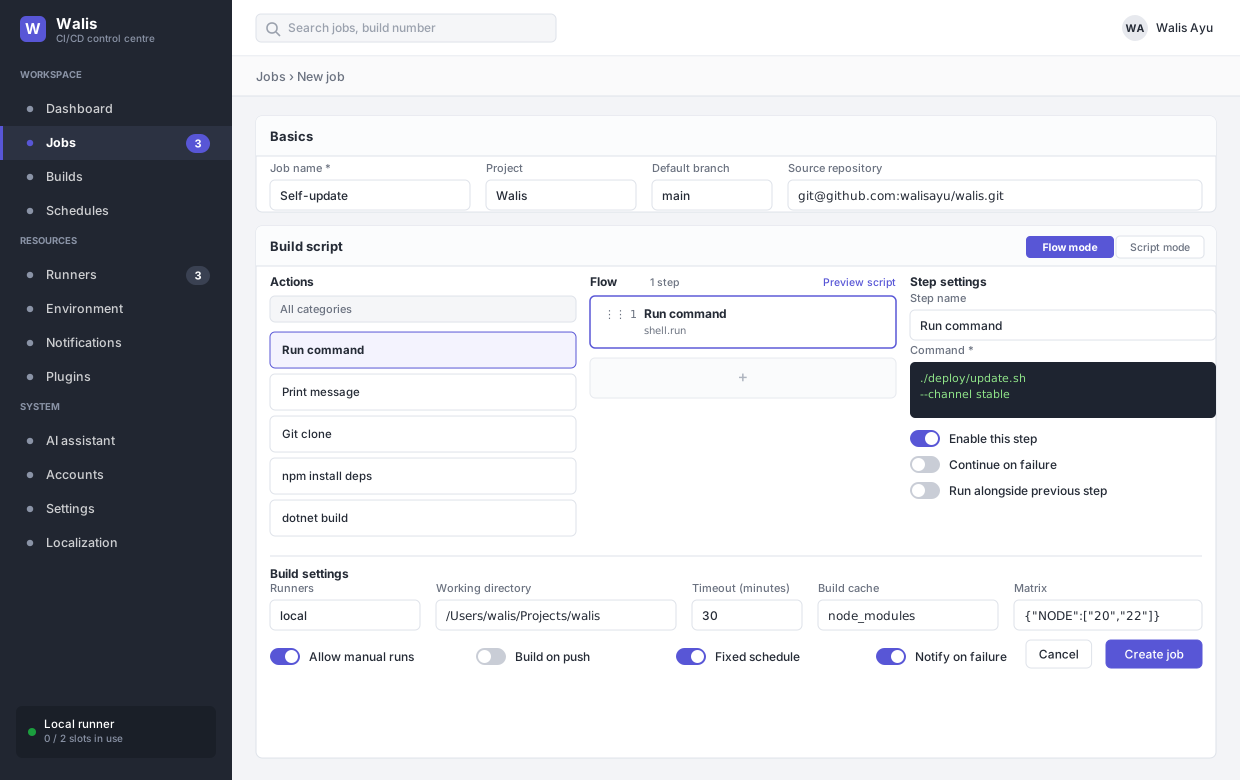
The editor is four tabs — Basics, Build script, Build settings, Triggers and notifications. A tab with a field that needs fixing carries a red !, so a validation error on a tab you are not looking at is still visible.
Cancel and Save job live in the breadcrumb row at the top of the page, not at the bottom of the form. Every page's action buttons sit there now — new, refresh, import/export, save settings, restore — so they are in the same place whatever you are looking at, and a long form does not put Save below the fold.
Basics
Name, project, default branch, description and source repository. The repository address is what push triggers match against, after normalisation — git@github.com:x/y.git and https://github.com/x/y are the same repository.
Build script
Two modes, switchable at any time:
- Flow mode — assemble the script from actions. The flow is compiled into a plain shell script when you save.
- Script mode — edit that shell directly.
Switching flow → script keeps the compiled output. Switching script → flow restores the steps and discards manual edits made in script mode. If you have hand-tuned a script, stay in script mode.
Flow mode is three columns — the action palette, the steps, and the selected step's settings. The outer two collapse (Collapse action palette, Expand step settings) so a long flow can have the width.
AI check script sends the script to your configured provider and reports what looks wrong. It does not modify the script.
Build settings
| Field | Notes |
|---|---|
| Runner | local or a registered remote runner. Work for an offline runner stays queued. |
| Working directory | Use an absolute path. Must be inside Allowed working directories if that list is set, or the build fails immediately. |
| Timeout | A budget for the whole build, not per step. Each step gets what is left. |
| Artifact paths | Copied out on success. Capped at 200 files / 64 MB. |
| Build cache | One relative path per line. Absolute paths and .. are ignored. |
| Matrix | {"NODE":["20","22"],"OS":["mac"]} fans out into one build per combination. Capped at 50. |
| Run one build at a time | While one build runs, the next waits in the queue instead of starting alongside it. Jenkins' disableConcurrentBuilds(). |
Build parameters
Declare up to 50 parameters — text, multi-line text, choice, boolean or password. A manual run opens a form for them first; schedules and push triggers use the defaults.
Scripts read them as environment variables ($RELEASE_TAG). Names cannot start with WALIS_, and passing a name the job never declared fails the trigger rather than being ignored — a parameter cannot be used to set an arbitrary variable.
Password parameters are masked in the log and never returned by the API. Other values are visible on the build, which is what you want when reading an old run.
Permissions
Roles that can see this job defaults to viewer; roles that can run this job defaults to operator. These are per job, so a deployment job can be administrator-only while the rest of the list stays visible to everyone.
Triggers and notifications
The three trigger options are one choice, not three switches — a job is manual, on push, or on a schedule. You cannot have a job that fires both on push and nightly; make it two jobs, or have the first trigger the second downstream.
What manual really selects is no automatic trigger. Running a job by hand is always available: the Run button is on every job regardless of which option is set. So choosing a schedule does not take the button away.
Create paused makes a job that will not run and will not be scheduled until you enable it — useful when you are still writing the script.
The push webhook URL lives in Settings → Security, not here.
Downstream jobs
Trigger downstream jobs when finished takes up to 20 job names, each with a when: on success, on failure, or always. The downstream build receives WALIS_UPSTREAM_JOB, WALIS_UPSTREAM_BUILD and WALIS_UPSTREAM_STATUS.
Targets are matched by name, so an exported job still resolves elsewhere. Chains stop at ten deep, and the trigger is checked against the upstream job's run role — see Downstream jobs.